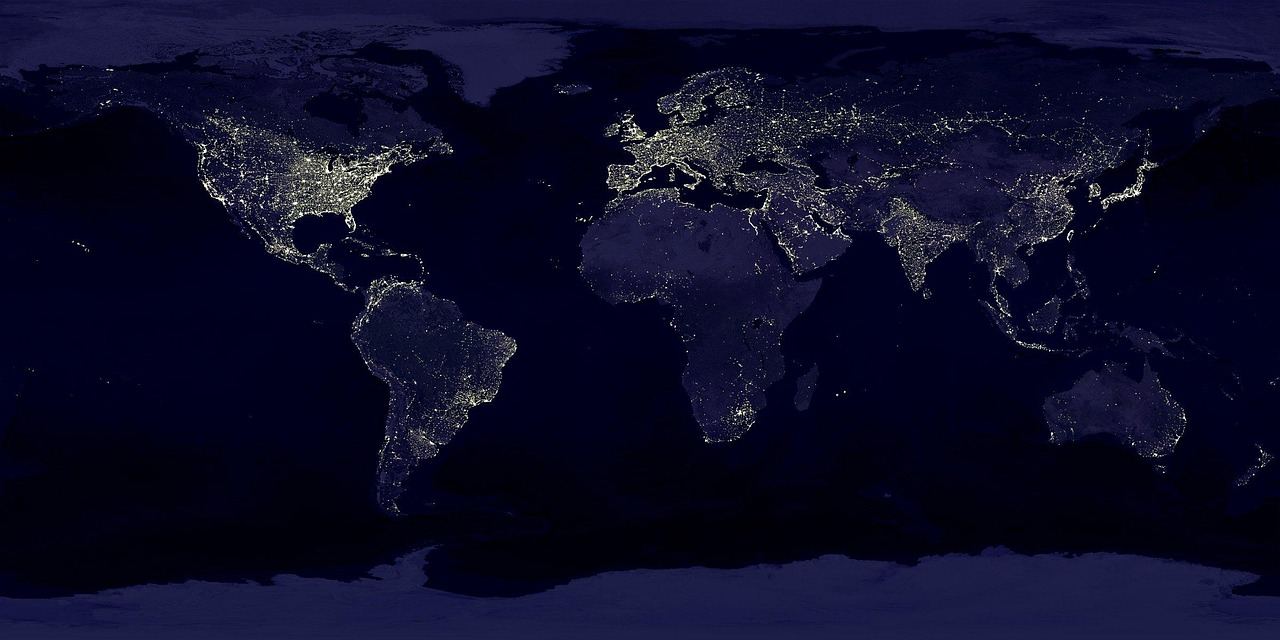
Does your panorama look stretched and warped on screen? Don’t worry: that is the equirectangular projection, a flat 2:1 image that maps the full sphere, 360° across and 180° from top to bottom.
This guide belongs to the wider topic of 360 photography and focuses on the flat file format behind most panoramas.
| Item | Value |
|---|---|
| Aspect ratio of a full panorama (360 content) | 2:1 |
| Horizontal span of the image | 360° |
| Vertical span of the image | 180° |
| Alternative cubemap layout | 6 frames |
| Kuula width threshold for a full panorama without metadata | over 3840px |
| Kuula maximum panorama size, free users | 16384 x 8192 px |
These figures come from Unity’s panoramic video documentation and Kuula’s image specifications. Platform rules can change, so check the source before you rely on them.
What the equirectangular projection does
An equirectangular projection flattens a spherical image onto a flat plane, so a whole surrounding scene fits into an ordinary rectangular file. Unity’s documentation describes the layout as longitude and latitude: the horizontal axis covers the full 360° around the viewer, and the vertical axis covers 180° from directly above to directly below.
The format is popular because it is simple. The Photo Sphere Viewer guide calls it the default projection used by most 360° cameras. A viewer wraps the flat file around the inside of a sphere, which is why lines that look bent in the file look natural when you look around.
Why does the 2:1 ratio matter?
A full sphere spans 360° across and 180° vertically, so the file has to keep a 2:1 shape. The Photo Sphere Viewer guide states that the full panorama width divided by the full panorama height must always be 2:1.
Platforms enforce this. In one PTGui support thread, a user exported a file at 11304 x 4435 and got an upload error saying the aspect ratio was not 2 x 1. The reply pointed out that images in the equirectangular projection can have any aspect ratio, but a full coverage of 360×180 degrees is what gives you 2:1.
When a file carries no spherical metadata, Kuula falls back on size rules to guess what you uploaded:
- Width over 3840px with a 2:1 aspect ratio: read as a full panorama.
- Width over 3840px with a ratio larger than 2: read as a partial panorama.
- Width over 3840px with a 1:1 ratio: read as a stereo/3D panorama.
Photos from popular 360 cameras normally include that metadata, so the fallback matters mostly for files you have exported or edited yourself, as Kuula’s help page explains.
Resolution and file size in practice
Kuula’s help page lists the full output size of popular cameras, so you can compare your upload against the original and spot a downscaled export. Each entry is a 2:1 file:
- Ricoh Theta Z1: 6720 x 3360
- GoPro MAX: 5760 x 2880
- Insta360 X5: 11904 x 5952
Platforms also resize what you send them. According to Kuula, desktop viewers get the full-size image or 8192 x 4096 pixels, whichever is smaller, while mobile devices get 4096 x 2048 pixel images. Free accounts can upload panoramas up to 16384 x 8192 px.
For panoramic video, Unity advises the highest possible resolution, but warns that many desktop hardware video decoders have a limit of 4K resolutions. Mobile decoders are often limited to 2K or less.
Some tools prefer tidy dimensions. The Kivicube documentation recommends 4096 px × 2048 px for panoramas and suggests power-of-two sizes such as 4096, 2048, 1024.
Partial panoramas and metadata
Not every panorama covers the whole sphere. Photo Sphere Viewer explains that cropped panoramas cover only a smaller portion of the 360°×180° area, for example 360° horizontally but only 90° vertically.
A viewer needs to know how the cropped image sits inside the full sphere. The same guide says that data holds six important values, grouped like this:
- The full panorama width and height, which keep the 2:1 shape.
- The cropped area width and height, which match your actual image size.
- The position of the cropped area inside the full frame.
Images from a mobile phone or dedicated 360° camera should already contain the correct XMP data, according to the same guide. Otherwise you can inject it yourself with tools like exiftool. Kuula likewise reads the EXIF and XMP metadata in a file to recognise what type of panorama it is.
Why the top and bottom look stretched
In the flat file, the top and bottom edges represent the points straight above and straight below you. That is where the stretching is most obvious, and viewers have to work to hide it.
The Photo Sphere Viewer documentation offers an optional raycasting shader that eliminates the distortion visible on the poles. It also has a sphere resolution setting: higher values can reduce deformations on straight lines at the cost of performance.
Equirectangular, cubemap and fisheye files
Equirectangular is not the only way to store a spherical scene, and you may meet other formats when exporting or uploading:
- Equirectangular: one flat image, with longitude along the width and latitude along the height.
- Cubemap: Unity says a cubemap lays a cube’s faces flat, with aspect ratios of 1:6, 3:4, 4:3, or 6:1 depending on the face layout.
- Dual fisheye: raw output from some cameras, which Kuula says must be converted to JPG before upload.
If you are still capturing your scenes, the guide on how to take 360 photos covers the shooting side. To turn the separate frames into one flat panorama, the walkthrough on how to stitch 360 photos covers the stitching step that produces this file.
Frequently asked questions
Is every spherical panorama stored as equirectangular?
Show answer
No. It is the most common layout, but cubemap is a real alternative. Unity’s manual lists both, and which one you meet depends on the software you use.
How big can my file be?
Show answer
Limits belong to the platform, not the projection. Kuula, for instance, allows PRO users to upload panoramas up to 32768 x 16384 px, as its image specifications show.
Can a partial panorama still use this projection?
Show answer
Yes, as long as the viewer knows which part of the sphere the image covers. That information usually travels in the file’s XMP metadata, or you can pass it to the viewer by hand, as the Photo Sphere Viewer guide describes.
How do I fix an aspect-ratio error on upload?
Show answer
Check the angles of view in your stitching software. In PTGui, a support reply suggests choosing the Spherical: 360×180 equirectangular option in the Projection menu of the Panorama Editor, as shown in the support thread.